

As part of our institution’s commitment to meeting the Title II Federal Accessibility Guidelines (WCAG 2.1 Level AA) ahead of the April 2027 deadline, UNO will be implementing a new approval process for all mass email communications sent through the campus-provided tool, HubSpot; beginning April 13, 2026.
While HubSpot as a platform is accessibility-compliant, individual users maintain control over content, formatting, and settings within their emails. This creates a level of risk that requires additional oversight to ensure all communications meet required accessibility standards.
To mitigate this risk and support campuswide compliance, UNO Compliance and the Office of Strategic Marketing and Communications (MarComm) has implemented a new process that requires all mass email communications to be approved prior to distribution. The approval process will be in place for the foreseeable future. MarComm is working to identify and implement a more sustainable, long-term approach to accessibility compliance across campus communications.
What this means for you
- All emails sent through HubSpot will need to be approved with the approval process. This includes emails that are text only, internal to campus, newsletters, student focused, and more.
- All HubSpot emails must receive approval from MarComm five (5) business days prior to the scheduled send date.
- All HubSpot emails must have “View in Browser” enabled (Read this Help Article).
- All emails should follow email best practices.
- Failure to obtain approval may result in temporary or permanent removal of access to the mass email tool.
Frequently Asked Questions (FAQ)
The Approval Process
Request Approval and Complete the Request Form
- Navigate to your HubSpot Account and locate your email communication.
- Click on the name of your content.
- In the top right corner of the content editor, click Request Approval.
- In the Request Approval dialog box, click the Approvers dropdown menu and select the checkbox next to the user you’re requesting approval from.
- Select Sarah Casey.
- Select an Option on the threshold of approvals required; click All Approvers.
- Enter a Due Date and Time.
- Reminder: Requests need to be submitted at a minimum of 5 days before desired send/publish date.
- Enter a message to be included (Optional).
- Click Request Approval.
- After submitting your HubSpot approval request, navigate to the MarComm Start Your Project webpage and complete a HubSpot Approval Request Form. The notification generated when you clicked "request approval" in HubSpot is the internal workflow to the software. The approval ticket is to track the process, overall status, and provide documentation for compliance reasons.
View Feedback
- In your HubSpot Account, navigate to Marketing >> Email
- Click on the name of your content
- Comments will be visible in the same dropdown box within HubSpot
See if Your Email is Approved
When an email is approved, the original requestor is notified through automated in-app alerts and external communications, depending on their personal notification settings.
If you do not receive a notification, you can verify the status directly within the email editor:
- Navigate to Marketing >> Email and click the drafted email's name.
- Click View approval in the top right. The collaboration sidebar will display the current status as Approved, meaning the email is now ready to be sent or scheduled.
Note: The user who sent the approval request will get the status updates notifications. However, any user with access to the email draft will be able to see the status and any comments left.
Cancel Approval
- In your HubSpot Account, navigate to Marketing >> Email
- Click on the name of your content
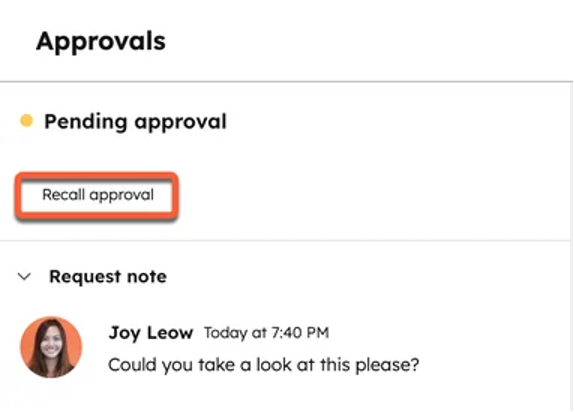
- In the content editor, click View Approval in the top right
- In the right sidebar, click Recall Approval
Planning Ahead
Have a big event coming up or a campaign? Plan ahead by sending a series of emails through the approval process in advance.
Note: HubSpot will require a secondary round of approval if changes have been made within the email.
Accessibility Tools
Download the WAVE Extension
Reviewing your email through WAVE prior to sending for approval could expedite your review process.
How to Use the Extension
After downloading the extension:
- Open your HubSpot draft email as you usually would
- Click on the "Preview and test" button on the toolbar (left of the orange "Review and send" button)
- Click on "Copy shareable link"
- Open a new tab in your browser and paste the link
- Access your extensions and select Wave
- If you make edits to your draft, you'll need to refresh the tab you have open for Wave, and click on the extension again to update the report card
The Report Card
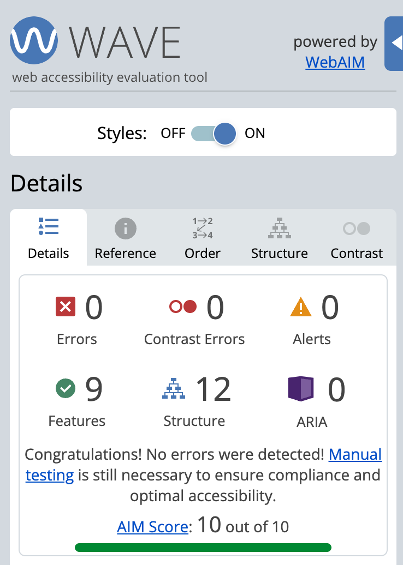
The scan will produce a report card.
- Errors: major concerns, needs corrected
- Contrast Errors: moderate concerns, change is recommended but not required
- Alerts: mild concerns
Event Communication
If the UNO Events team is managing your event communication, their team will draft and gain final approval prior to sending the email communication.
You will still be part of the overall copy and content creation and approval.
Templates
Most HubSpot templates are accessible if the structure is left unedited. MarComm will be reviewing all templates to make sure they meet the standard as well.
Other Questions
No. HubSpot is the campus provided communication tool and it is advised to send all communication through HubSpot.
This practice will ensure communication is meeting the WCAG 2.1 Level AA Accessibility Standard.